Clipster Dashboard and Campaign Updates: What Creators Should Check
November 6, 2026
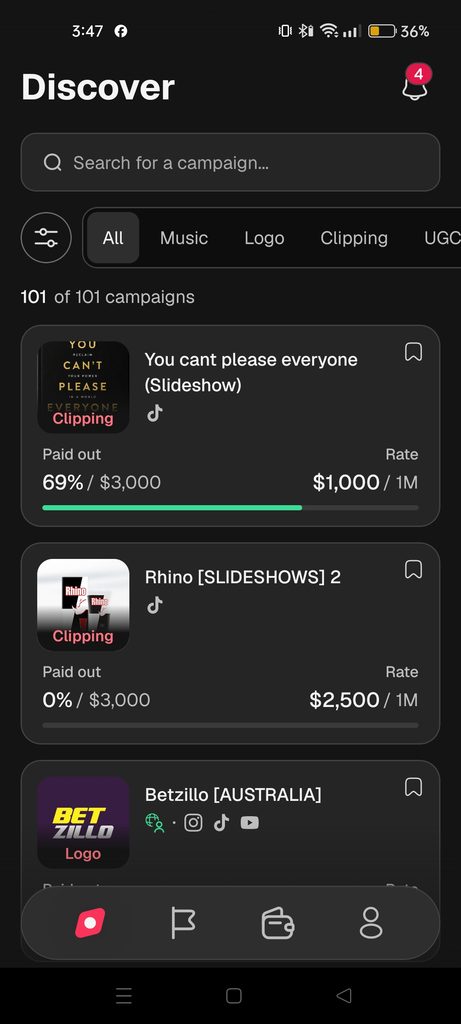
The Clipster dashboard is where creators manage their campaigns watch video submissions and check their earnings.
As the platform changes, dashboard labels, campaign information and creator tools may change.
For someone who regularly participates in campaigns checking these details is important.
A new campaign requirement, updated payment rate or change to a submission status can affect what you should do next.
This guide explains what to check when using the Clipster dashboard how to understand campaign changes and which details creators should review regularly.
Why Should Creators Check Clipster Dashboard Updates?
The dashboard contains information that can change during your creator journey.
- A campaign may. Change its payment rate.
- A campaign may update its content requirements.
- A submitted video may receive a status.
- A campaign may. Relaunch.
- Your eligible views may refresh.
- Your earnings may move from pending to paid out.
- A social media account may need to be reconnected.
Checking these details regularly can help you avoid missed updates and make campaign decisions.
1. Review the Discover Section
Discover is the starting point for finding active Clipster campaigns.
When you open Discover look for campaigns that match your content niche and preferred social media platform.
Before joining, check:
- Campaign name and category.
- Content Requirements.
- Accepted Platforms.
- Payment Rate.
- Minimum Views for Earnings.
- Minimum Engagement Rate.
- Minimum Duration.
- Submission Limits.
- Cap per Post and Cap per Profile.
My Activity is where you can review campaigns you have joined and videos you have submitted.
My Activity is useful to check this section after publishing and submitting a video.
Campaigns
Open the Campaigns area to review joined campaigns and their current information.
If a campaign displays an update label open it again. Check the latest details.
Submissions
Open Submissions to see your videos and their current status.
You may see statuses such as Processing, Insufficient Views For Earnings, Eligible, Rejected or Paid Out.
These statuses explain where your submission is in the process.
Remember that Eligible does not mean approval. Clipster monitors the post and final eligibility is confirmed after the campaign ends.
3. Look for Campaign Rate Changes
Payment rates can be updated during a campaign.
If you see a label such as ‘CPM Updated’ or ‘CPM Increased’ open the campaign page to understand the change.
Check whether the new rate applies to your platform and whether the campaign has other updated requirements.
Do not rely on a screenshot when the current campaign page displays different information.
4. Check Content Requirement Changes
A campaign can also update its content brief.
For example the brand may add a sound modify a caption instruction or change the type of video it accepts.
Before publishing another video check:
- The current content brief.
- Required. Tags.
- Accepted content types.
- Video duration.
- Any additional. Niche conditions.
Clipsters guidance says posts submitted before a rule change are reviewed under the requirements. New submissions should follow the updated rules.
5. Monitor Your Video View Refreshes
Creators should understand that Clipster does not update video views continuously.
The current Help Centre explains that view updates generally happen every two hours during the eight hours after submission followed by updates usually every one, to seven hours.
Open My Activity → Submissions to review the view information.
If the next refresh is displayed, use it as a guide than expecting every view to appear immediately.
Also remember that views stop updating when the campaign ends.
6. Understand Changes to Submission Status
A submission status can change as your video moves through the checking and review process.
Here is a quick explanation:
| Status | Meaning |
|—|—|
Processing | The submission is being checked. |
Insufficient Views For Earnings | The post has not reached the required minimum views. |
| Eligible | Basic requirements are met; monitoring continues. |
| Rejected | The submission did not pass review. |
Paid Out | Earnings have been credited to your balance. |
If a post is rejected, open the posts details. Read the reason. Do not assume that a high view count guarantees approval.
7. Check Your Earnings and Balance
My Balance is the section where you review your funds.
Remember these differences:
- Pending earnings are not yet confirmed.
- Approved earnings are processed after the campaign ends and reviews are complete.
- Paid Out means the earnings have been credited to your Clipster balance.
- Withdrawable funds are subject to the platforms minimum and payment rules.
Campaigns can end when their budget is used or when Clipster or the brand ends them.
When a campaign ends:
- New submissions are no longer accepted.
- View tracking stops.
- Existing submissions continue through the review and payout process.
Some campaigns may relaunch later. If this happens check the campaign details before submitting additional content.
Clipster also explains that submission limits do not reset simply because a campaign relaunches.
9. Keep Your Connected Accounts Updated
A connected social account is important for submitting videos and tracking performance.
If your account disconnects or verification stops working, Settings or Connected Accounts and review its status.
If Clipster asks you to reconnect follow the linking instructions.
You should also make sure your social media posts remain public and that their statistics can be accessed.
10. Follow Notifications and Official Announcements
Notifications can help you stay informed about campaign matches, submission rejections and balance changes.
You can review notification settings from the website or app.
For campaign‑specific announcements check the associated Discord channel when available. Brands may share assets, additional instructions or campaign updates there.
Do not rely on notifications; open the campaign page to confirm the current requirements.
A Weekly Clipster Dashboard Checklist
If you use Clipster regularly this simple checklist can help you keep track of information.
- Check Discover for campaigns.
- Review new campaign requirements.
- Look for CPM or requirement update labels.
- Check My Activity → Campaigns.
- Review the status of submitted videos.
- Check views and refresh information.
- Look for rejection messages.
- Review My Balance and transactions.
- Confirm that connected social accounts are working.
- Read notifications and Discord announcements.
You do not need to check every section. A regular review is enough to help you notice changes.
Common Mistakes When Checking Dashboard Updates
Using campaign information: Always check the current campaign page.
Assuming every status means approval: Eligible is not the same as Paid Out.
Expecting real‑time views: Clipster refreshes statistics periodically.
Ignoring campaign endings: Once a campaign ends views stop updating.
Confusing pending earnings, with balance: Pending earnings are not immediately withdrawable.
Ignoring account connection problems: A disconnected account can affect your ability to submit videos.
Asked Questions
Where can I find Clipster dashboard updates?
Check Discover, My Activity, My Balance, account settings and official campaign announcements to stay informed.
If you regularly participate in campaigns reviewing your submissions and active campaign requirements every few days is a habit. Check often when a campaign is close, to ending or displays an update.
CPM Updated means that the campaigns payment rate has changed. Open the campaign page to review the rate and conditions.
Campaign rules can change during a campaign. Clipster says posts submitted before a rule change are reviewed under the requirements; new submissions should follow the updated brief.
The campaign may have ended, used its budget or become unavailable. Check My Activity for campaigns you already joined.
Clipster generally counts views gained after submission and Clipster statistics refresh periodically rather than in real time.
Checking Clipster dashboard and campaign updates is a part of managing your creator account.
Use Discover to find campaigns My Activity to monitor your videos and My Balance to review your earnings. Pay attention to campaign update labels, submission statuses and account connections.
Importantly use the current campaign brief and official Help Centre as your main sources of information. Using the campaign brief and official Help Centre will help you avoid outdated instructions and make better decisions when participating in Clipster campaigns.